The designated Billing Admin, or any portal admin with subscription management permissions, can manage and subscribe to plans through the portal.
If you do not have access to Billing and Subscriptions, reach out to your portal's Billing Admin to make the necessary changes on your behalf.
Understanding Your Subscription Details
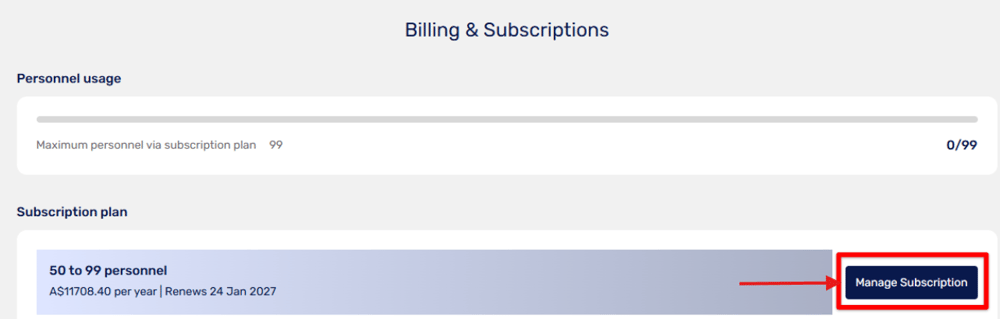
Once on the Billing and Subscriptions page, you will see:
- Personnel usage - the number of personnel assigned to resource pool(s) in your portal
- Maximum personnel via subscription plan - the total number of personnel you are allowed to add, based on your chosen subscription
- Subscription plan details - your subscription tier, billing frequency, amount, and next billing date
Managing Your Subscription
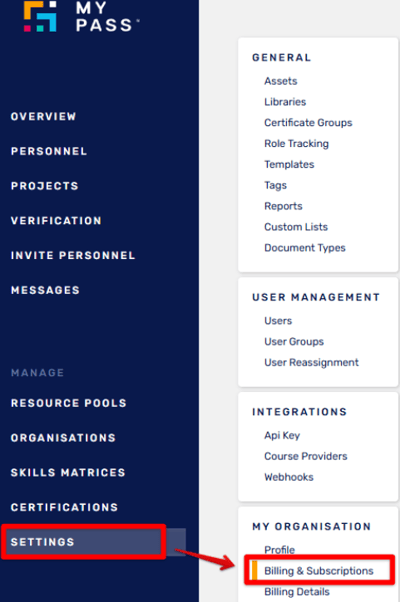
Log in to your MyPass portal. From the side menu, click Settings, then click Billing & Subscriptions to manage your current subscription settings.
Click Manage Subscription. You will be routed to a page where you can either change your plan or cancel.
Change Plan
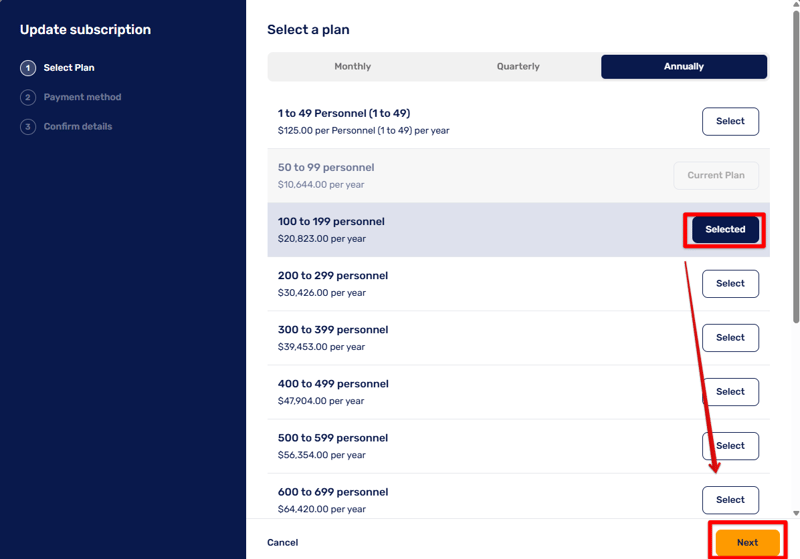
Click Change Plan and choose your preferred plan - either an upgrade or a downgrade from your current tier. Ensure the new plan accommodates all the personnel you will need.

Note: If downgrading to a lower tier, you must first remove personnel from all assigned resource pool(s) until the number aligns with your desired tier.
Select your plan and billing frequency (Monthly, Quarterly, or Annually) and click Next to choose your payment method.
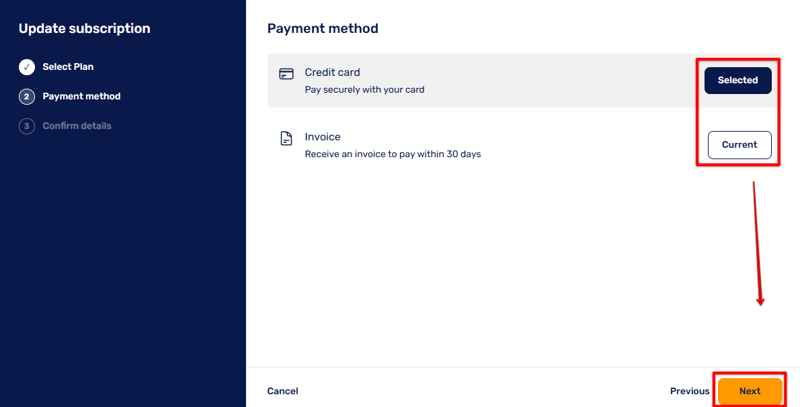
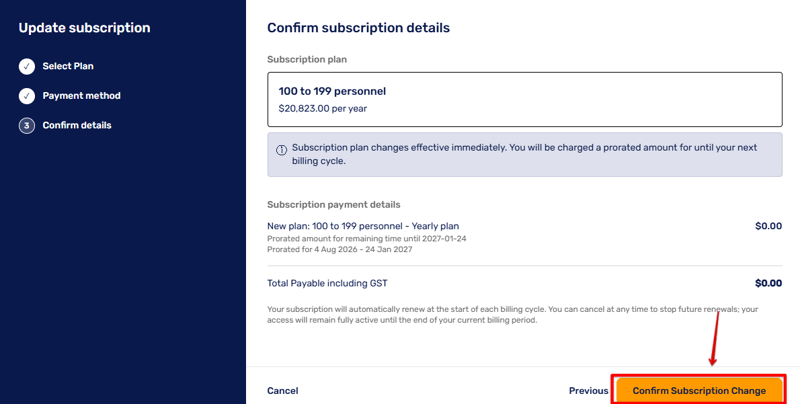
Select your payment method and click Next to view the subscription breakdown.
Once confirmed, click Confirm Subscription Change.
Cancel Plan
Click Cancel Subscription.

A confirmation box will appear showing when your subscription is due to end. Click Cancel Subscription again to confirm.
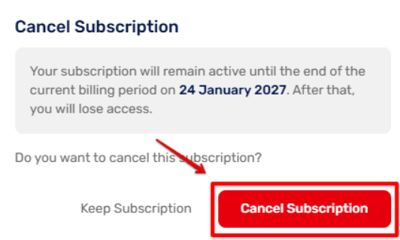
Note: Your access will continue until the end of your current billing period.
Updated
Comments
0 comments
Please sign in to leave a comment.